Topic: Graphing and plotting
Online Help
Function plots
Calcpad can draw two kinds of graphs directly in the calculation report: plots of functions and charts of data. Function plots are created by the $Plot and $Map commands, which evaluate one or more expressions within a specified interval. Data charts, like $Line, $Column or $Pie, display values that are already calculated and stored in vectors and matrices. The appearance of both is controlled by plot options, such as Plot.Width, Plot.Title or Plot.Legend, which are described at the end of this chapter.
Each plotting command must be the first thing in a line. You can have only spaces and tabs before it, not even comments. Otherwise, the program will return an error. Any text after the closing bracket "}" is ignored. Plots can be either in raster (PNG) or vector (SVG) format. The vector format is usually smaller and faster than the raster one. However, you may have problems with export to older versions of Word or other software that does not support SVG. You can switch between the two formats by the Plot.Svg option.
The $Plot command plots a function of one variable in the specified interval. It has the following format:
$Plot{y(x) @ x = a : b}
, where:
- y(x) - the function to be plotted. Instead of y(x) you can put any valid expression. It will be used to calculate the ordinate values;
- x - the name of the variable along the abscissa. You can put here only a single name. It is not required to define the variable preliminary;
- a and b are the limits of the interval for the x variable. Instead of a and b you can put numbers, variables or any valid expressions.
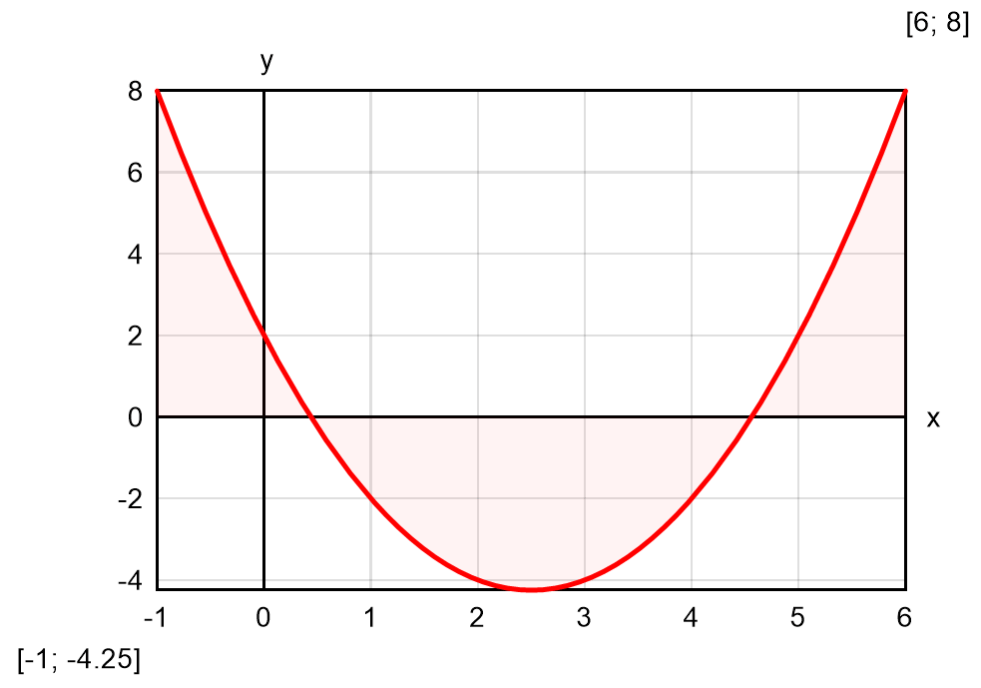
For example, if you enter: $Plot{x^2 - 5*x + 3 @ x = -1:6}, you will get the following result:
The above command plots only one function of one variable at a time. There are also other formats that you can use:
$Plot{x(t)|y(t) @ t = a : b} - parametric plot: both coordinates are functions of a parameter;
$Plot{y1(x) & y2(x) & … @ x = a : b} - multiple: plots several functions on a single graph;
$Plot{x1(t)|y1(t) & x2(t)|y2(t) & … @ t = a : b} - multiple parametric;
$Map{f(x; y) @ x = a : b & y = c : d} - draws a 2D color map of a 3D surface, defined by f(x; y).
Plotting supports only real numbers. You can use it in complex mode, only if x and y are real and the function returns real result along the plotting interval.
The size of the plot area is set by the Plot.Width and Plot.Height options in pixels. The default values are Plot.Width = 500 and Plot.Height = 300. You can also add a title, axis labels, a legend, limits and grid steps. All options are described in the "Plot options" section below.
Plotting a function requires multiple evaluations. This is performed at uniformly spaced points of a dense mesh so that to catch any variations of function values. However, if evaluations are computationally expensive, this approach can be very time-consuming. In such cases, you can use adaptive plotting. It starts with a coarse mesh and condenses it adaptively to the curvature. Where the function is smoother, the mesh remains coarser, so that the total number of points is optimal and much less than for uniform mesh. You can switch adaptive plotting on and off by clicking the "Adaptive" checkbox or by setting Plot.Adaptive = 1 or 0, respectively. Adaptive plotting will work for relatively smooth plots with limited number of breaks and jumps. If you have rapidly oscillating functions, it is possible to miss some peaks, so it is recommended to turn it off.
The $Map function can work with different color palettes. Select the preferred one from the "Palette" combo box on the bottom of the program window. If you check the "Smooth" checkbox, the coloring will be displayed as a smooth gradient. Otherwise, the program will display strips. You can also add 3D effects to the graph by selecting the "Shadows" checkbox and specify the light direction by the respective combo. Besides the UI controls, you can specify these settings in the code by the Plot.Palette, Plot.Smooth, Plot.Shadows and Plot.LightDirection options. They override the UI settings for all plots that follow.
Examples of different plotting methods are provided below:
|
Parametric Equation: r(θ) = cos(5/2*θ)$Plot{r(θ)*cos(θ)|r(θ)*sin(θ) @ θ = 0:6*π}
|
Multiple Equation: y1(θ) = cos(θ) - sin(θ)y2(θ) = cos(θ) + sin(θ)$Plot{cos(θ) & y1(θ) & y2(θ) @ θ = 0:π}
|
Result: "rose" curve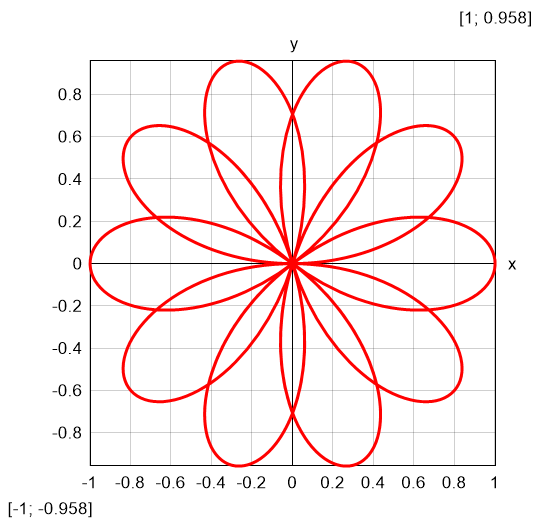 |
Result: leaf by three trigonometric functions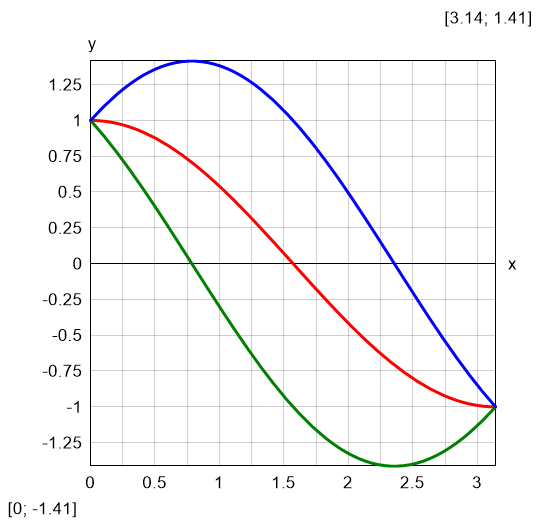 |
|
Multiple parametric Equation: x(θ) = sqr(θ)*cos(θ)y(θ) = sqr(θ)*sin(θ)$Plot{x(θ)|y(θ) & -x(θ)|-y(θ) @ θ = 0:3*π}
|
Color map Equation: f(x; y) = cos(x/3) + sin(y) - sin(x)*cos(y/4)$Map{f(x; y) @ x = -15 : 15 & y = -15 : 15}
|
Result: double Fermat spiral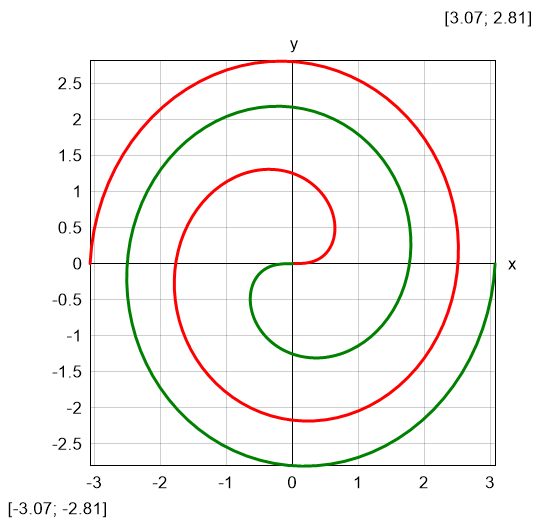 |
Result: 2D waves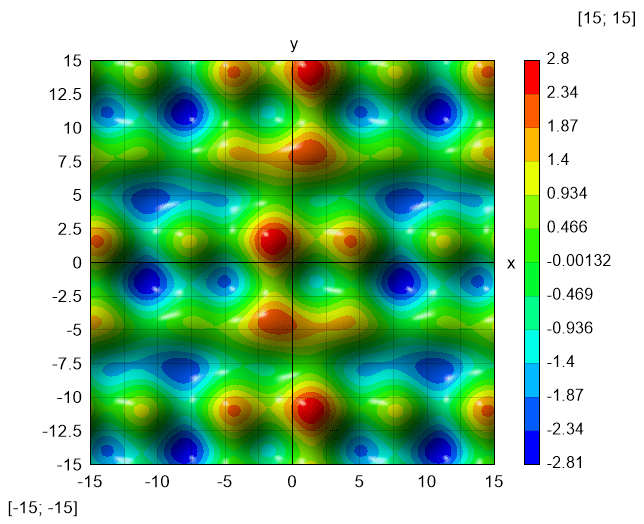 |