Topic: Coding aids
Online Help
Insertion dialog
The insertion dialog helps you to add functions, macros, plots and tables to the code without typing them. First, position the cursor at the place of insertion. Then press the  button to show the dialog. Select the required item on one of the tabs and click the "Insert" button. Items in the lists can also be inserted by double-clicking on them. The dialog has the following tabs:
- Standard function - all built-in functions, grouped by categories. The description of the selected function is displayed below the list;
- Custom function - the functions defined in the current worksheet;
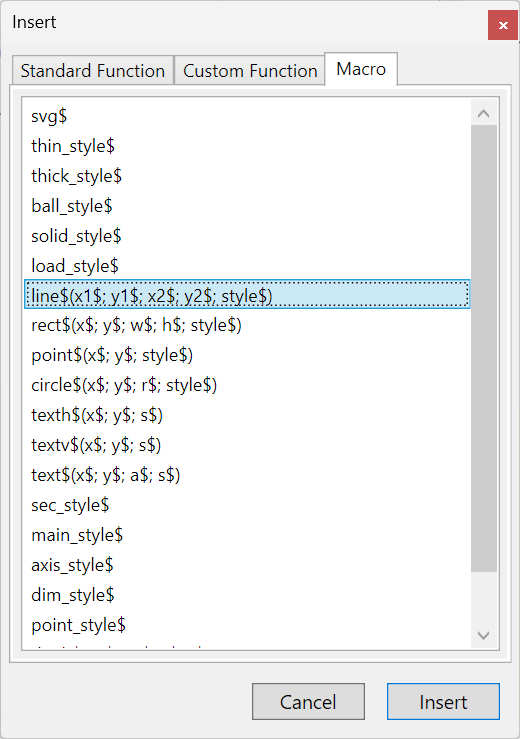
- Macro function and variable - the macros defined in the current worksheet;
- Plot - the plot commands and their options;
- Table - the table function and its formatting options.
Only custom functions, macro functions and macro variables that are declared above the current line are listed. The others cannot be used at this place, and are not listed for that reason.
CoolProp helper. If you select the CoolProp category on the "Standard function" tab, the list is replaced by a form that helps you to compose the calls of the fluid property functions, such as CP.Props and CP.HAProps. Select the function from the list at the top and enter its arguments below it. The fluids, properties and other fixed values are selected from lists. The fluids are grouped into pure fluids, incompressible fluids and solutions and predefined mixtures. Hover the mouse over a value to see its description, other names and units. The input values can be entered with or without units. Numbers without units are taken in the default units of the respective property. The arguments are checked while you enter them, e.g. if the two inputs make a valid pair, if the fraction of a solution is in the allowed range or if the mole fractions of a mixture sum to 1. Invalid arguments are outlined in red and the reason is displayed when you hover the mouse over them. If you click "Insert" while there are errors, the program asks you for confirmation. The resulting expression is previewed at the bottom of the form.
Plots. On the "Plot" tab, select the plot command from the list at the top. It includes function plots ($Plot and $Map) and data charts ($Line, $Fill, $Smooth, $Bar, $Column, $Scatter, $Pie, $Donut, $Radar, $Bubble and $Chart). The description of the selected command is displayed at the bottom. Then, set the options in the property list below. They are grouped into sections: "General", "X axis", "Y axis", "Surface maps", "Data plots" and "Series 1" to "Series 10". The sections can be expanded and collapsed, and the number of options that are set is displayed next to the name of each section. Only the options that apply to the selected command are displayed. Fixed values, like colors, line styles and palettes, are selected from lists, and the others are typed in. Select "Auto" to restore the default value of an option. Texts are enclosed in quotes automatically. Invalid values are outlined in red. Options that are left empty are not inserted, and the "Reset" button clears all options. The options that are set are inserted as separate lines before the command, for example:
Plot.Title = "Bending moment"Plot.Width = 400Plot.Series1.Color = Color.Red$Plot{f(x) @ x = a : b}
Then, replace the placeholders in the command with your own functions, data and limits. To insert only the options, select "Options only" from the list. The "Plot.Reset()" item inserts a command that restores the default values of all plot options. The options remain in effect for all plots that follow, so you do not have to set them for each plot. More information is available in the "Graphing and plotting" section.
Tables. The "Table" tab works in the same way. It inserts the table function together with the formatting options, grouped into "Layout" (style, alignment and merging of cells) and "Colors" (text and background colors of the cells, alternating rows and headers). See also the "Tables" section.
The values that you enter for CoolProp functions, plots and tables are kept until you close Calcpad, so you can easily insert similar expressions.